
Posted by marshall on Mar 16th 2026
Build, Visualize, and Customize: How to Use True Precision’s New 3D Gun Configurator
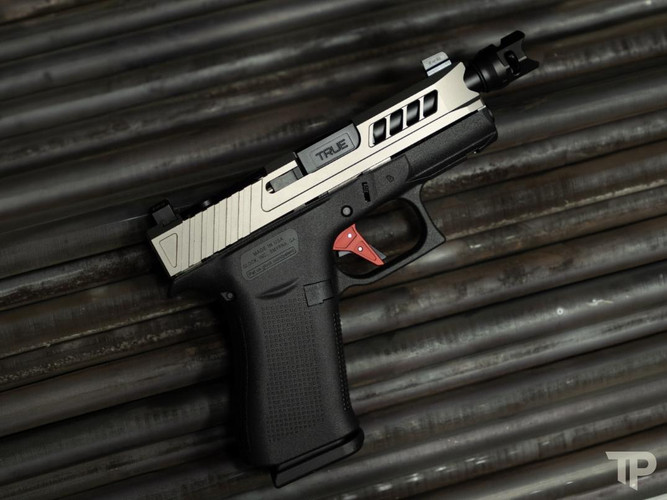
True Precision has launched our brand new 3D Gun Configurator in beta, giving you the ability to build your gun and see exactly how our parts will look in stunning 3D before you buy. This powerful new tool is currently in beta, and we are rolling it out to most major models. At launch, it is available specifically for the Glock 43 platform. Our goal with the configurator is simple: to help customers view our parts before purchasing and create a more user-friendly purchasing experience.
Primary Function of Configurator/Upgrade Builder:
- Build a full custom handgun or just add individual accessories, Including: triggers, compensators, slides, lowers, barrels, and more.
- Shop and checkout at any time – buy just a comp, a barrel, a slide, or complete your entire build in one seamless session.
- Real-time 3D visualization – rotate, zoom, and see every detail of your configuration come to life before you buy.
How to Access the Configurator:
Accessing the 3D configurator is easy. Go to any Glock 43 accessory page, such as barrel, slide, trigger, and more. Scroll down. Underneath the Add to Wishlist button, you will see a button that says “Build Your Own.” Click it to open the builder. You can leave and come back to your selection at any time from any product page for that model.
How to Access the Configurator:
Accessing the 3D configurator is easy. Go to any Glock 43 accessory page, such as barrel, slide, trigger, and more. Scroll down. Underneath the Add to Wishlist button, you will see a button that says “Build Your Own.” Click it to open the builder. You can leave and come back to your selection at any time from any product page for that model.
Getting Started: Selecting Your Products:
To get started, you can select which parts you want to view in 3D by selecting the tab on the right, choosing the item, and hitting Select. From that screen, you can then configure your parts similar to our normal product page. If you just want to view the product but not add it to your final build, you can move on to the next tab. When you want to add the product to your final build, you can select Add to Build or Add to Cart.
Adding to Cart VS Adding To Build:
When configuring your parts in the 3D configurator, you have two options: “Add to Cart” and “Add to Build”. It is important to understand the difference so you avoid duplicate items in your cart.
Adding a part to your cart will simply add it to the cart but not to the build. It still will be displayed in the 3D viewer. However, the Add All button — if the item was added to the cart before being added to the build — will add it again to the cart.
The Add to Build button works differently. It simply allows your item to be added to the cart all at once when you are done configuring. This keeps your final checkout clean and organized.
The Configurator On Mobile:
On mobile, you can select either the grayed-out images of the part or use the left and right arrows to scroll through the different components. Once on the component you want to configure, select or swipe up the bar at the bottom and select your product the same way you would on a desktop. If you only want to view your product and not add it to your build, you can do so simply by swiping down or clicking what you used to open that product.
Rotate, Zoom and Inspect Every Angle in 3D:
In the top left it gives you the controls if you get lost. You can also select Re-center 3D View above the instructions to reset the viewer. For desktop, left-click + drag spins the model and changes the viewing angle, scroll in or out changes your zoom, and right-click + drag allows you to move the model around without spinning. Mobile has similar instructions: use one finger to rotate the model, pinch with two fingers in or out to zoom, and use two fingers to move the model around.
Want to start over or create anther build?
In the top left of the configurator, there is a red reset button. This button will clear out all of your selections and allow you to restart your build.
Purchasing Your Build:
At the end, when you have your build just the way you want it, you can select the blue Add All button. This will add all the items, with your selections, to the cart where you can check out. If you didn’t select items that you changed your mind on and you want to add them to your build, you will have to go back and select Add to Build from each product to add them to your cart.
Known Issues:
As this is still a beta version, these are our known issues:
- TP-SMICRO-SS and TP-SMICRO-B are missing their models.
- Model coating variations do not match exactly with the final product. (Please see photos on the product page for a better representation of the coatings.)
Found a Bug? Here’s Exactly How to Report It:
Please email orders@true-precision.com with any bugs, suggestions, or comments you may have.
What’s Next for True Precision’s 3D Configurator
The True Precision 3D Gun Configurator beta is the first step toward a completely new way to build and visualize your firearm. Our core goals remain the same: helping customers view our parts in stunning 3D before purchasing and delivering a more user-friendly purchasing experience from start to finish.
We plan to release the final configurator on most major platforms soon, with the long-term vision of making it available for all platforms. Your input during this beta phase is invaluable and will help us perfect the tool for every shooter.